
AI in Practice: Retrieving Customer Orders in SAP
In our „AI in Practice“ section, we’ll walk you through a specific use case step by step: from navigation and customization all the way to functional testing. This article focuses on setting up a chatbot for AI-powered order status tracking in SAP based on CDS views.
SAP is complex, and training new sales employees is time-consuming, especially given the current shortage of skilled workers. Being able to quickly determine the current status of customer orders in SAP is a critical factor for planning, service, and sales within the company. The use of artificial intelligence in SAP offers the potential to easily check order progress using natural language. This allows users to retrieve customer information and access inquiries, quotes, and orders without having to navigate through complex input screens and transactions. Detailed analyses and evaluations can be presented in an appealing format—whether as text, a graph, or a table—via a UI5-based chat interface and using the Markdown format. This not only saves a great deal of time but also significantly boosts team productivity and accelerates the learning curve for new SAP users.
Milliarum provides the technology; you build the AI application
With the Milliarum AI Construction Kit and the General Chatbot IT administrators can create an AI-powered user guide in SAP in just a few steps using voice-based interaction. This is based on the Core Data Services (CDS) views in SAP, which deliver relevant data with high performance. Our unique selling point is maximum flexibility. From OpenAI to European cloud providers to your company’s own network: our technology adapts perfectly to your security requirements. The Milliarum AI Construction Kit includes a generic AI chat for interacting with the AI, as well as a customization environment for configuring applications to suit individual needs and for integrating various large language models (LLMs). The General Chatbot makes it easier to use SAP functions and can be adapted via Customizing for specific use cases, such as retrieving sales orders. Equipped with customized access to company-specific data, this leads to more efficient knowledge management and supports the use of SAP functions.
10 Steps to Creating an AI Chatbot for Order Progress Tracking in SAP:
1. Launch App Manager
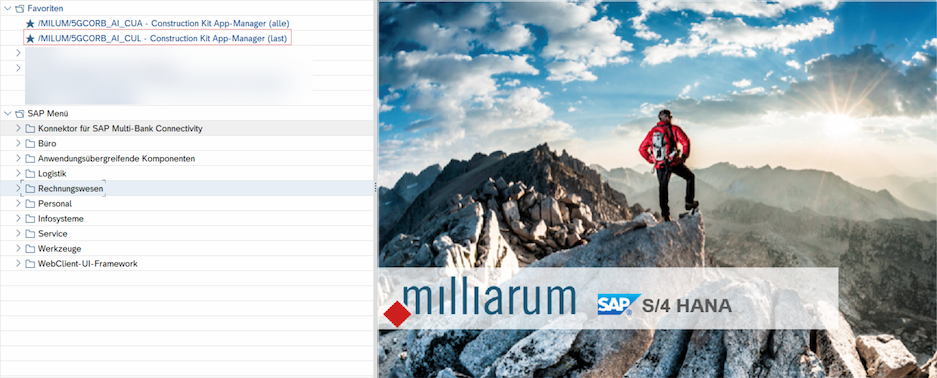
In the SAP system, open the Construction Kit App Manager (/MILUM/5GCORB_AI_CUA or /MILUM/5GCORB_AI_CUL).
Search for the entry Generic AI Chat and open the Customizing menu.
2. Create a Managed Datasource
In the Managed Data Source Manager Create a new data source, for example,.
ID: ZSD_DEMO_HOWTO
Description: SD Expert Demo
Save your entries.
3. Define a Managed Entity
Create an entity that describes the business use case.
Example:
ID: ZSALES_ORDER
Description: Overview of All Customer Orders
The basis is the CDS view I_SALESORDER.
4. Add a Leading Data Part with a CDS View
Link the CDS view to your entity:
- Name: e.g., ZSALES_ORD
- Core: /MILUM/GAGDS_DSRC_CDS_DYN
- CDS-View: I_SALESORDER
Save the configuration.
5. Select Attributes
Select the fields that you want the chatbot to display later, for example:
- SALES ORDER (Order Number)
- SALESORDERDATE (Date)
- OVERALLTOTALDELIVERYSTATUS (Overall Delivery Status)
- TOTALNETAMOUNT (Net Amount)
- TRANSACTIONCURRENCY (Currency)
Define the primary key, generate the attributes, and save them.

6. Create a persona
Define how the chatbot „thinks“ and speaks:
- Persona ID: SD_HOW_DEMO
- Description: SD Expert: Sales Order Information
- LLM: e.g., GPT-4o via the OpenAI Connector
Write the system prompt to focus the chatbot on the SAP SD context.

7. Configure the function
Specify which data source the chatbot uses:
- Functional class: /MILUM/5GAICB_F_AI_FUNC_MDSRC
- Function ID: ZSD_DEMO_HOWTO-ZSALES_ORDER-R
- Description: e.g.,. List of All Customer Orders
Save the function.
8. Assign a persona
In Application Customizing, assign the persona you created to the chatbot so that it can access the new feature.
9. Perform the test
Select the persona in the chat and enter, for example:
„Show me all customer orders“
Check to see if the table with the selected attributes is displayed correctly.

10. Fine-Tuning with Variants & Dependent Data Parts (optional)
- Variants: Change the column order, rename fields, or set sort orders.
- Dependent Data Parts: Include additional information from other CDS views, such as the descriptive text for the delivery status instead of the SAP code.
We go through the individual steps in the „AI Chatbot SD Configuration“ documentation, which you can here We'll walk you through the download process.